Know Which Paint Can Matches Which Wall
Save the color, the room it went on, and where the can is stored — on the day you finish painting. Two years later, search the room and walk straight to the right can, instead of prying lids open in the basement.
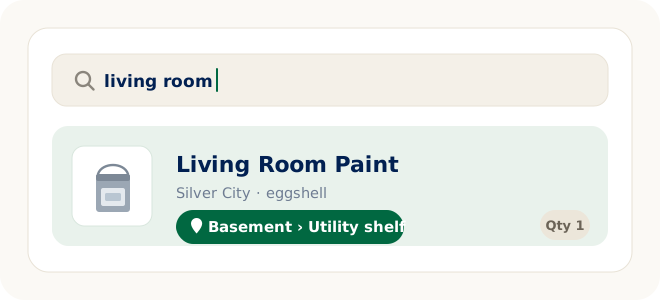
Leftover paint is the most confidently mislabeled object in the house. On the last day of the project you know exactly what went where, so writing it down feels unnecessary. Then the gap arrives — not weeks, but years — and a chair scuffs the hallway. Now there are five half-full cans on a basement shelf, three of them the same shade of beige, and the only way to find out which one matches is to open all of them and paint a test patch.
The fix isn’t a better label on the lid. It’s a record you can search: name each can the way future-you will look for it, save where the can lives, and search for the room when the scuff appears. That’s the same item-first habit that makes a home inventory app useful for everything else you own — you search for the thing, and the system tells you where it is.
The touch-up questions nobody can answer
Paint fails in a specific way: you own the answer, you just can’t retrieve it.
How it works
Photograph the cans
Line the leftover cans up on the shelf and take one photo with the AI scan. One photo can recognize one item or up to 10, and the same flow works for a shelf, a cabinet, a bin, a storage area, or a single can. Prefer typing? Manual items are unlimited on every plan.
Review, and name each can
This is the step that makes paint work. The scan proposes what it recognizes — it does not read text off the label — so you rename each can to the words you’ll actually type later: Living room paint — Silver City, eggshell. AI proposes; you confirm. Nothing is saved until you say so.
Save where the can lives
Give the cans their spot, up to three levels deep: Basement → Utility shelf → Paint bin. Every can on that shelf shares the location, so you set it once, not once per can.
Search the room, not the color
Three years later, nobody remembers “Silver City.” Everybody remembers “the hallway.” Search for the room and the matching can comes back with the location you saved — which is why the room belongs in the name.
Name the can the way you’ll search for it
Search looks at what you wrote down, so the name is where the useful details belong. Four things are worth typing while the can is still in your hand:
- The room or surface. This is what you’ll search for — “hallway,” “kids’ bathroom,” “garage trim.” If a room has walls and trim in different paints, name both.
- The color name and code. Written into the item, it survives a fading label, a swapped lid, and a store that reformulated the line.
- The sheen. Flat, eggshell, satin, semi-gloss. Sheen is what decides whether a touch-up disappears or announces itself.
- Roughly how much is left. “About a quarter” is the difference between a touch-up and a trip to the store.
Nothing here requires a special field or a template — it’s one honest item name, written once, and searchable from then on.
Where leftover paint actually ends up
Locations nest up to three levels, which is enough to describe where cans really sit without inventing a filing system nobody will maintain:
Basement → Utility shelf → Paint bin
Garage → Back wall → Paint shelf
Utility closet → Bottom shelf → Touch-up kit
Shed → Left shelf → Exterior paint
Why this beats tape on the lid
- A label is container-first. Writing “living room” on a lid only helps once you’ve already found and lifted that can. It can’t answer “which can?” from the top of the basement stairs.
- Camera-roll photos aren’t searchable by room. A photo of the label is better than nothing, but three years of photos later, you’re scrolling — not searching.
- The gap is measured in years. Paint is the longest interval in the house between writing something down and needing it, which is exactly when memory stops being a system.
- Nobody has to be the index. If only one person knows which can is which, touch-ups wait for that person. That’s its own household problem.
- Fewer duplicate gallons. A ten-second search in the paint aisle settles “do we already own this?” before the register does.
Do it on the last day of the project
The best moment to record leftover paint is the moment the drop cloths come up — when the color name, the sheen, and the room are all still in your head at the same time, and the cans are already in one place. It takes a few minutes and it is the only day of the project when the information is free.
If the painting happened years ago and the cans are already stacked somewhere, don’t stage a cleanout to fix it. Record them the next time you’re down there anyway, one shelf at a time — the same way a storage bin inventory gets built without a dedicated weekend.
FAQ
Leftover paint questions
How do I keep track of leftover paint colors?
Save each leftover can as an item and name it the way you will search for it — the room it went on, the color name, and the sheen. Then save where the can is stored, for example Basement → Utility shelf → Paint bin. When a touch-up comes up, search the room and LivingLedger shows the can and the location you saved.
Does the AI read the color code off the paint can?
No. LivingLedger does not read text off labels — there is no OCR anywhere in the app. The AI photo scan proposes items it recognizes in your photo; you review the suggestions, name each can the way you will search for it, and save. AI proposes, you confirm.
Can one photo capture all my leftover cans?
One AI photo scan can recognize one item or up to 10 items, and the same flow works for shelves, cabinets, drawers, boxes, bins, storage areas, or a single can. You review what the AI finds, adjust anything if needed, then save. If you have more than ten cans, a second photo covers the rest.
What happens if I move the paint to a different shelf?
Update the location on the item. There are no tags, beacons, or automatic tracking — LivingLedger shows the location you saved. Locations nest up to three levels deep, so a path can be as specific as Garage → Back wall → Paint shelf.
Can I do this without using AI scanning?
Yes. Manual inventory items are unlimited on every plan, and typing in a can takes about as long as reading its label. AI photo scanning is the fast path for a shelf full of cans, not the only way in.
Is LivingLedger free?
LivingLedger is free to start. Manual inventory items are unlimited, and Free includes 50 lifetime AI scan credits — each AI photo scan uses one credit, and the credits do not reset or refill. Pro unlocks unlimited AI scanning for personal household use, subject to fair-use limits. See the pricing page for current plan details.
Next touch-up, search instead of guessing.
Start with the shelf the cans are already on. Record it once — find the right can for years.
Free plan · No credit card required · Web app + iOS app